1Connect your phone
- On the TV, open the menu on a category, or on a channel in the TV guide.
- Choose TubEdit. The TV shows a QR code and a 10-character code, as below.
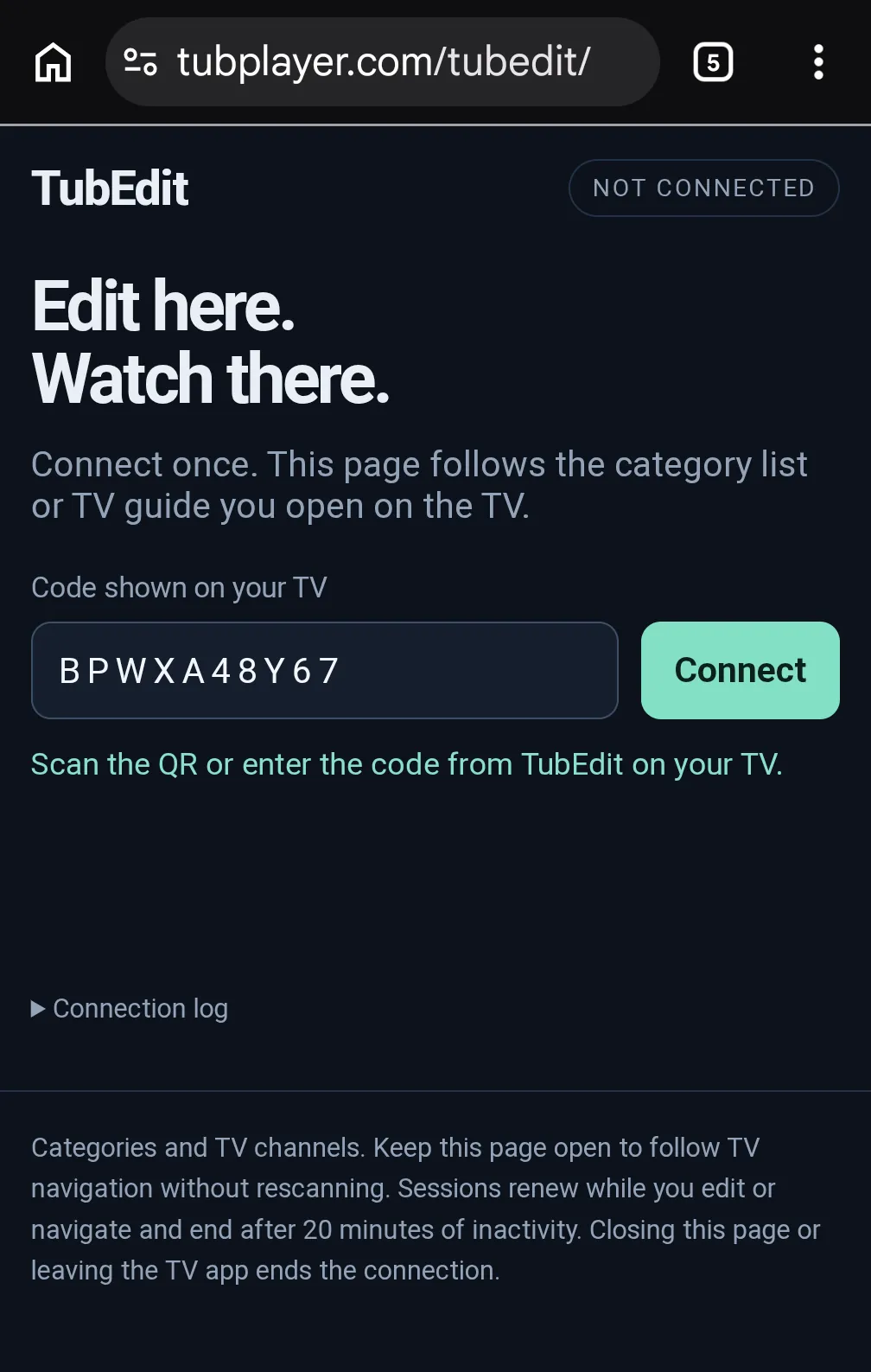
- Scan the QR code with your phone. Or open tubplayer.com/tubedit on your phone, type the code and tap Connect.
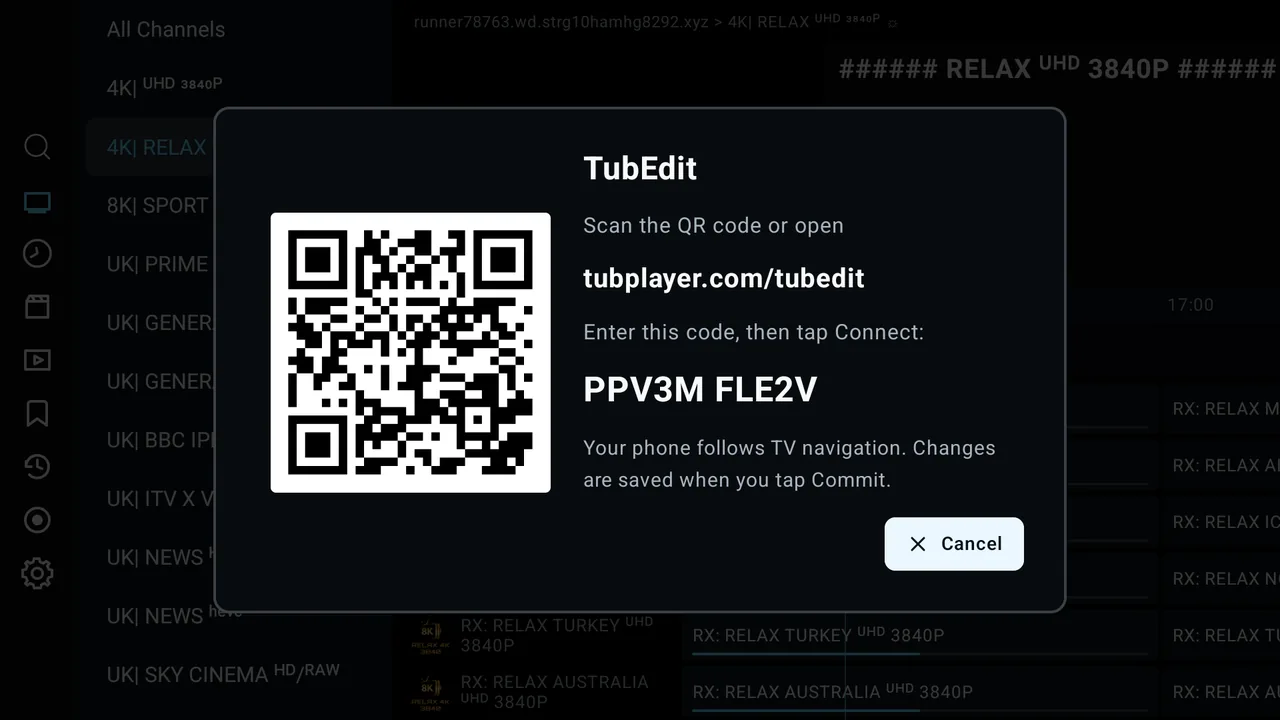
The code on the TV closes by itself once your phone is connected, and the list opens on your phone.
2Your list
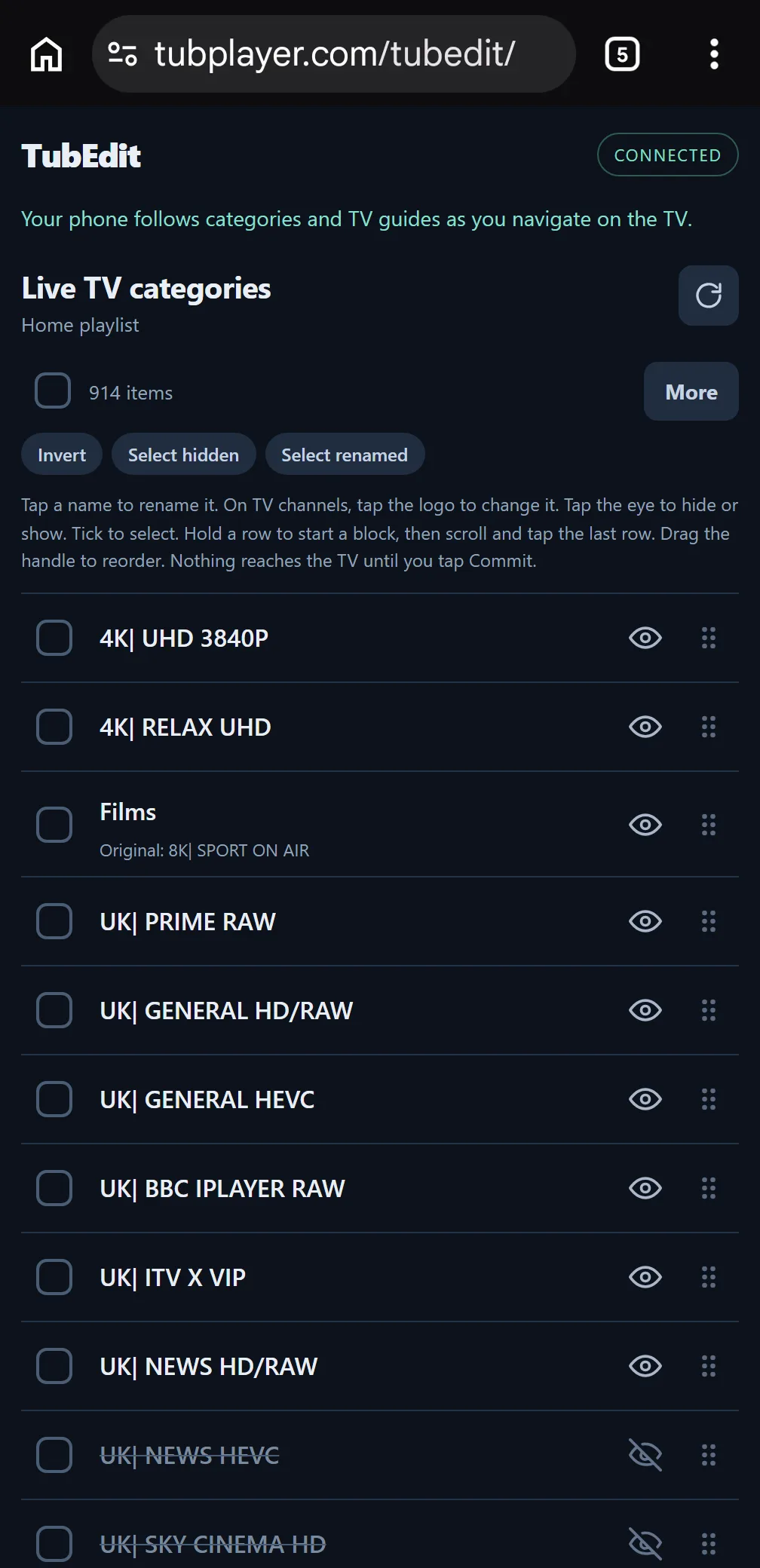
Your phone shows the list you have open on the TV: the categories of a playlist, or the channels in a Live TV category. Live TV, Movies and Series categories can all be edited.
Keep the page open and move around on the TV as normal. When you open another category or playlist on the TV, your phone follows it. You do not need to scan again.
To reload the list, tap the round arrow next to the list name.
3Rename, hide and reorder
- Rename: tap a name and type a new one. Leave it blank to get the provider's name back.
- Change a logo: on TV channels, tap the logo.
- Hide or show: tap the eye. Hidden items stay in the list so you can show them again.
- Reorder: drag the handle (the six dots) up or down.
4Select several items
- One at a time: tick the box on each row.
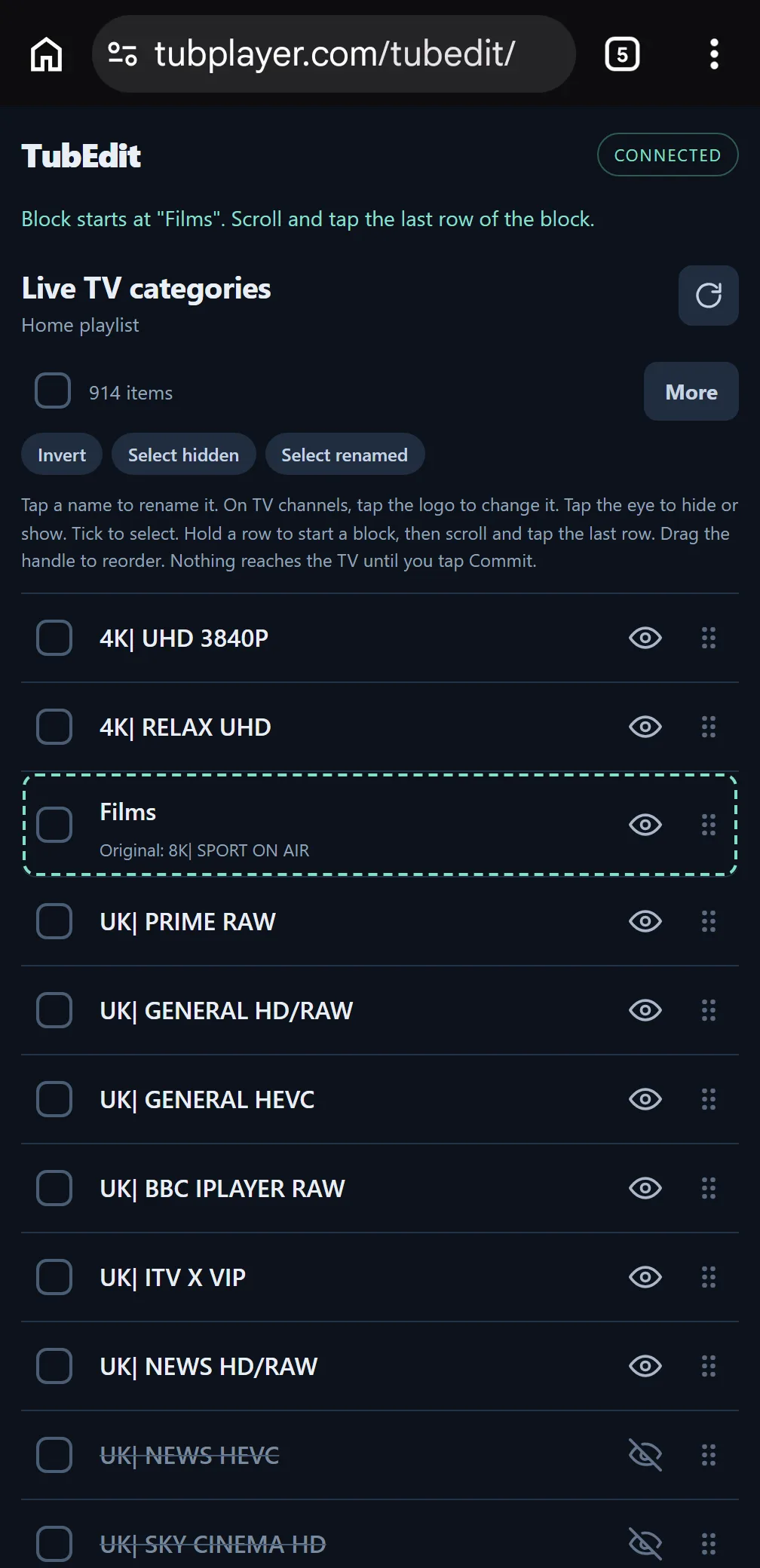
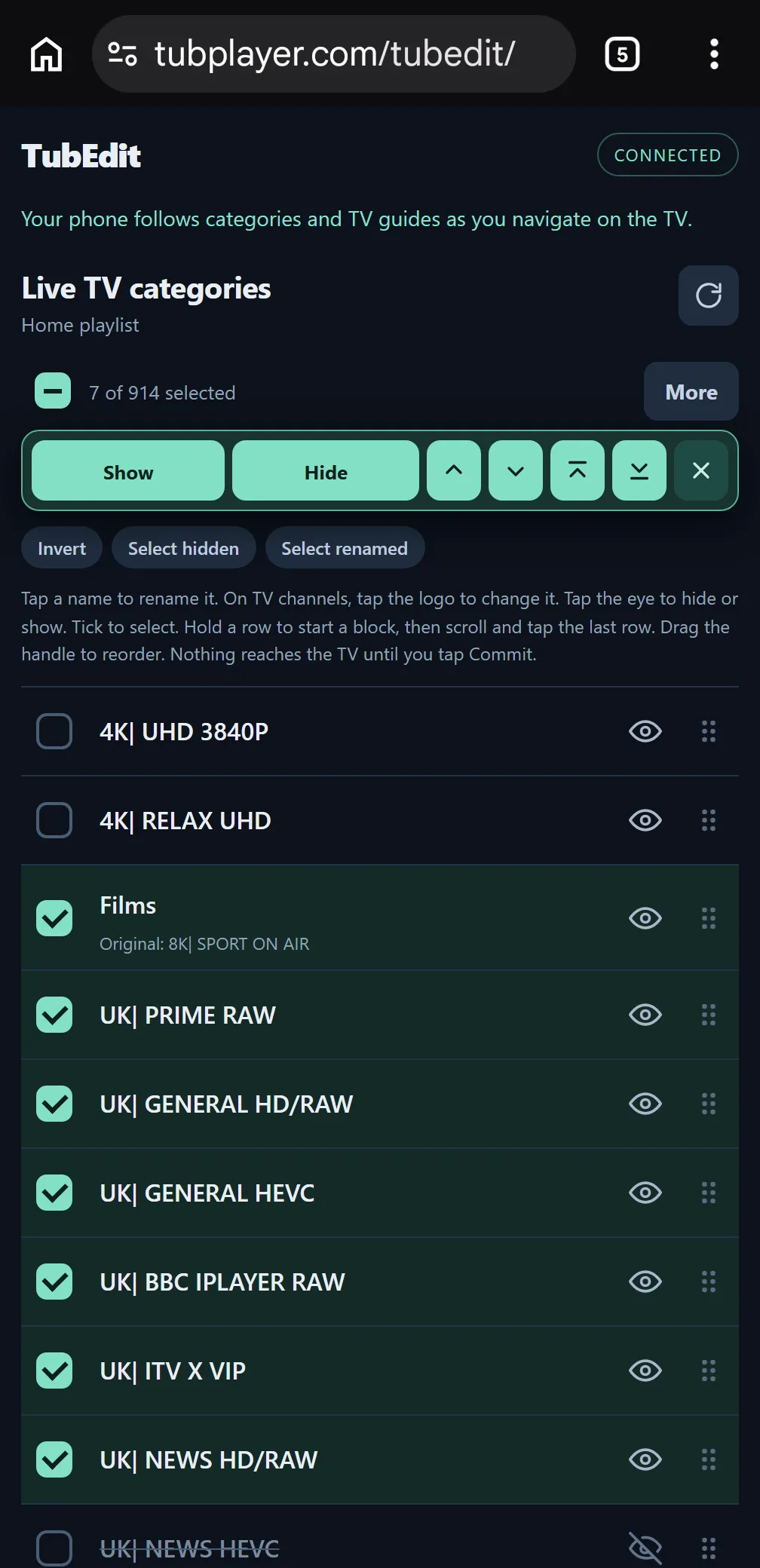
- A block: hold the first row until a dashed outline appears. Scroll, then tap the last row. Everything between them is selected. To cancel, hold the outlined row again.
- Everything: tick the box at the top of the list.
- By rule: the buttons under the list header. Invert swaps what is selected; Select hidden and Select renamed select just those items.
A bar appears with buttons for the whole selection. It stays at the top of the screen with the count and More while you scroll:
- Show and Hide
- Move up or down one place
- Move to the top or the bottom
- X clears the selection
5Save to your TV
Your changes wait on the phone until you tap Commit. Then they appear on the TV.
Changed your mind? Tap Discard to throw away changes you have not committed.
Auto commit sends every change to the TV straight away, so you never need to tap Commit. Turn it on or off with the Auto commit box below the list, just above End connection. When it is on, the page says "Auto commit is on" at the top.
6The More menu
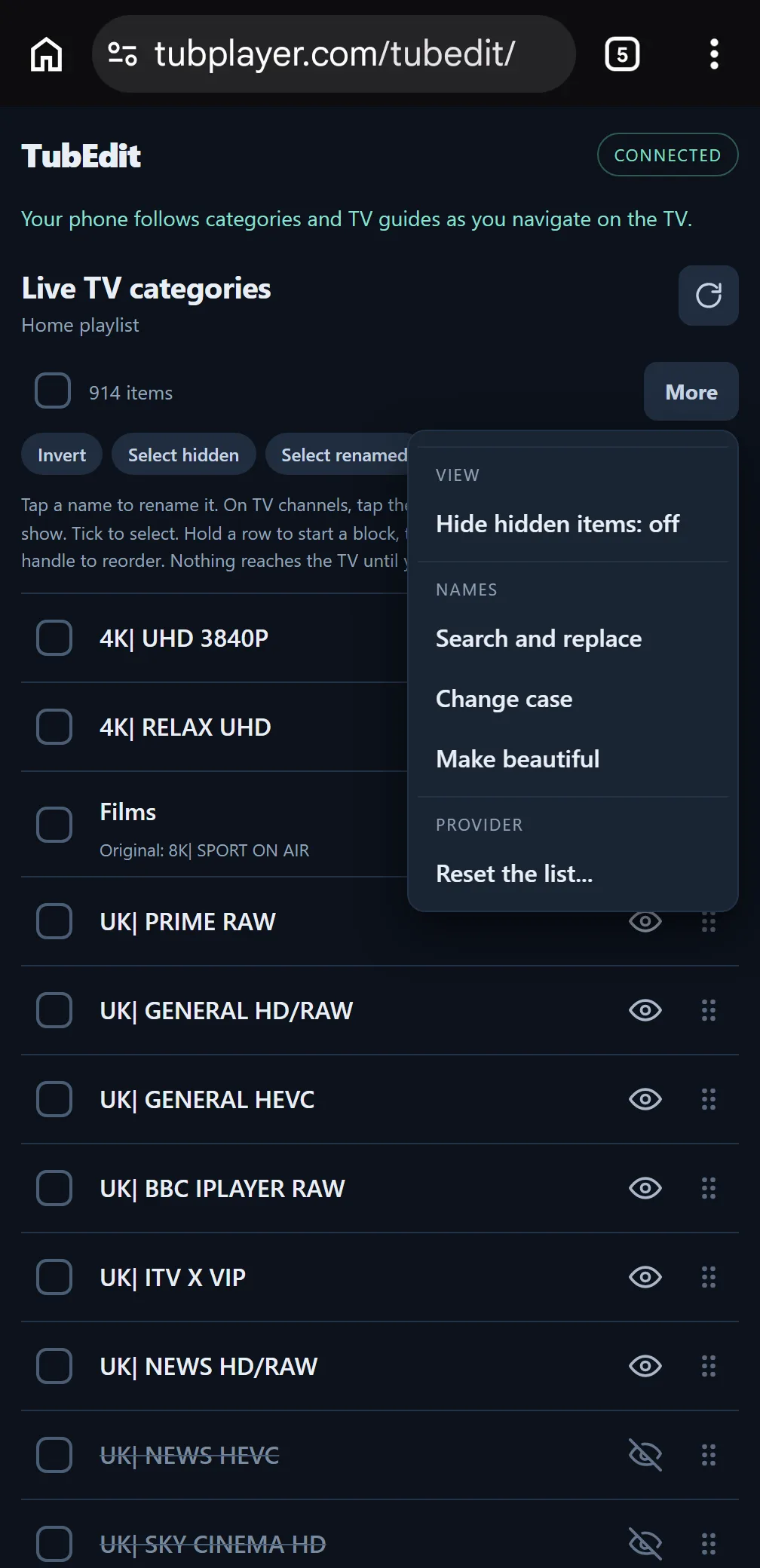
Tap More for extra tools.
- Hide hidden items: leave hidden items out of the list on your phone, so you only see what shows on the TV.
- Search and replace, Change case, Make beautiful: tidy up names. See steps 7 to 9.
- Find logos (TV channels only): picks a logo for each selected channel when the logo library has a clear match for its name. Channels it is not sure about are left for you to pick.
- Reset the list: go back to how the provider supplied the list. See step 10.
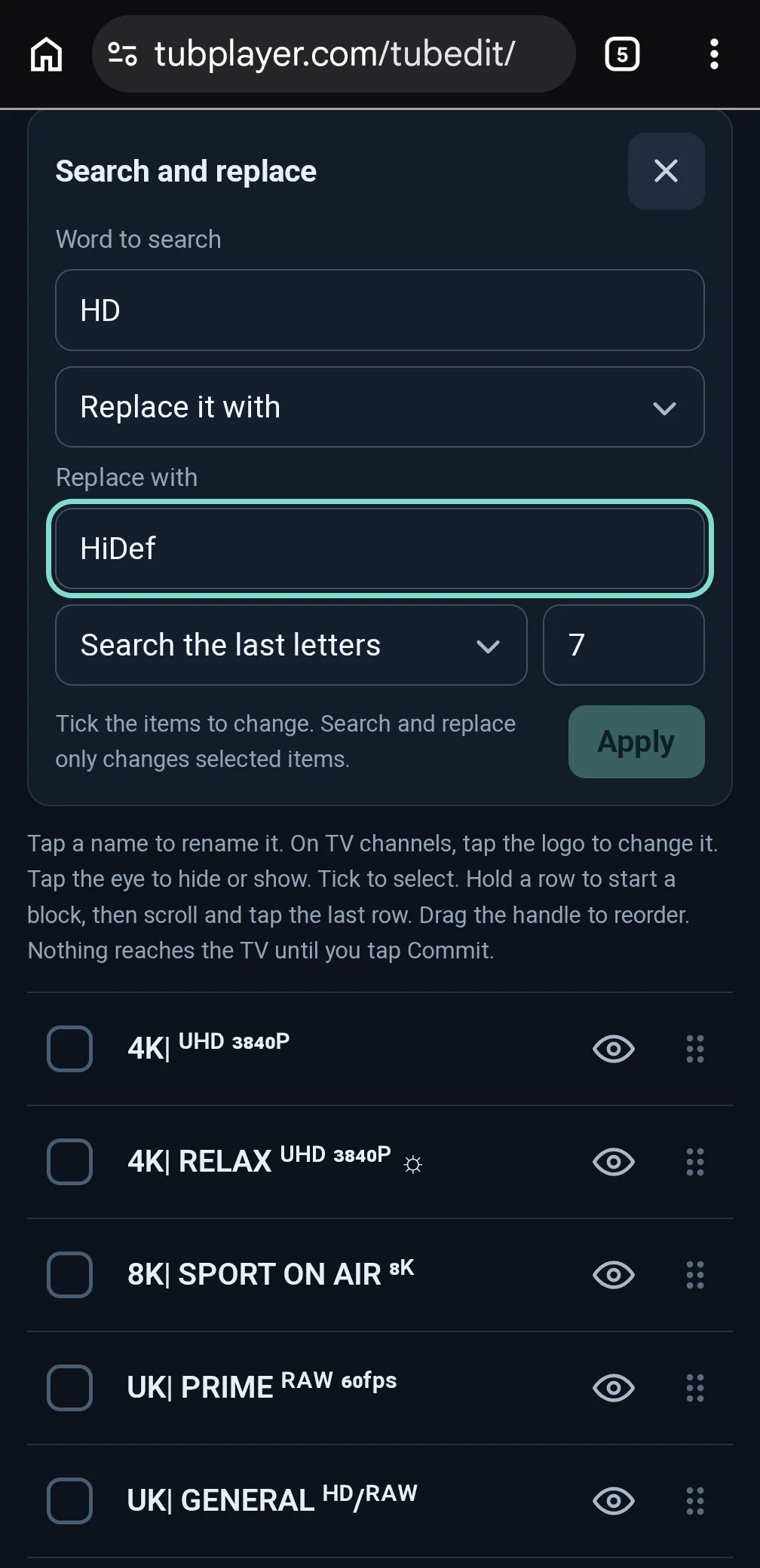
7Search and replace
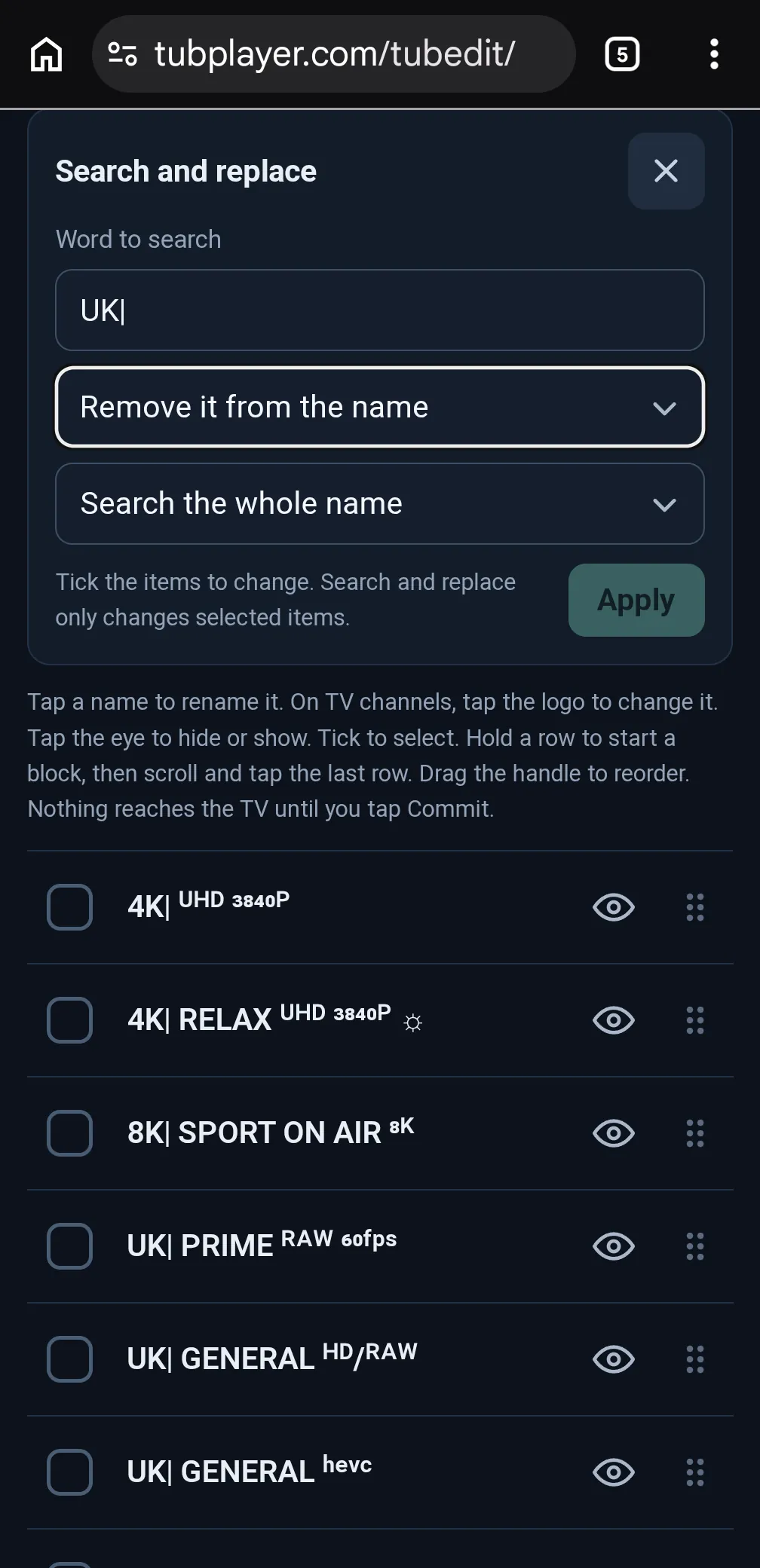
- Tick the items to change.
- Open More and tap Search and replace.
- Type the word to search for, for example UK|.
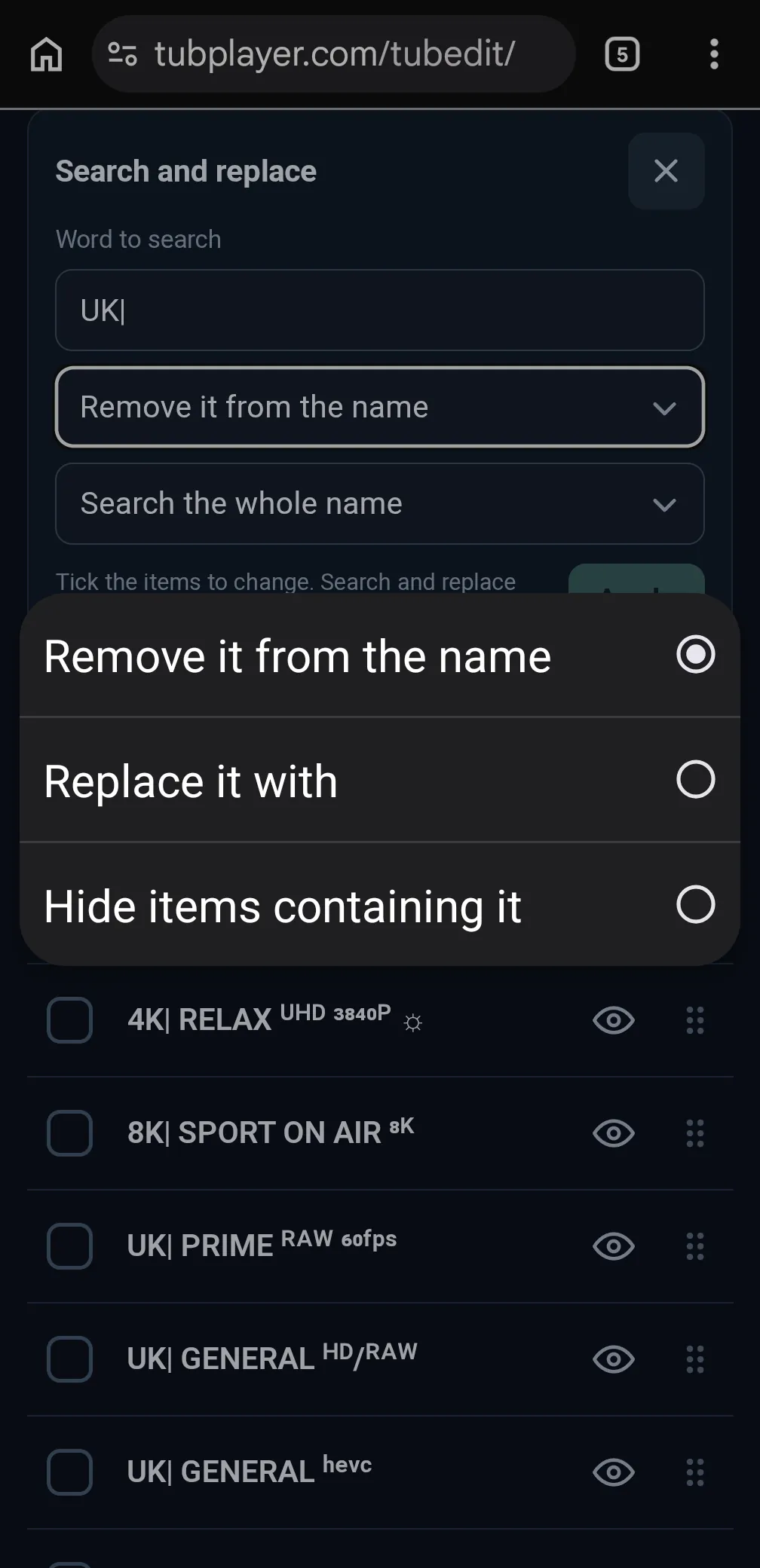
- Choose what to do with it:
- Remove it from the name
- Replace it with another word you type
- Hide items containing it
- Choose where to look: the whole name, or only its first or last few letters.
- Tap Apply.
Capital and small letters are treated the same. TubEdit remembers your last search, so you can use it again on the next list.
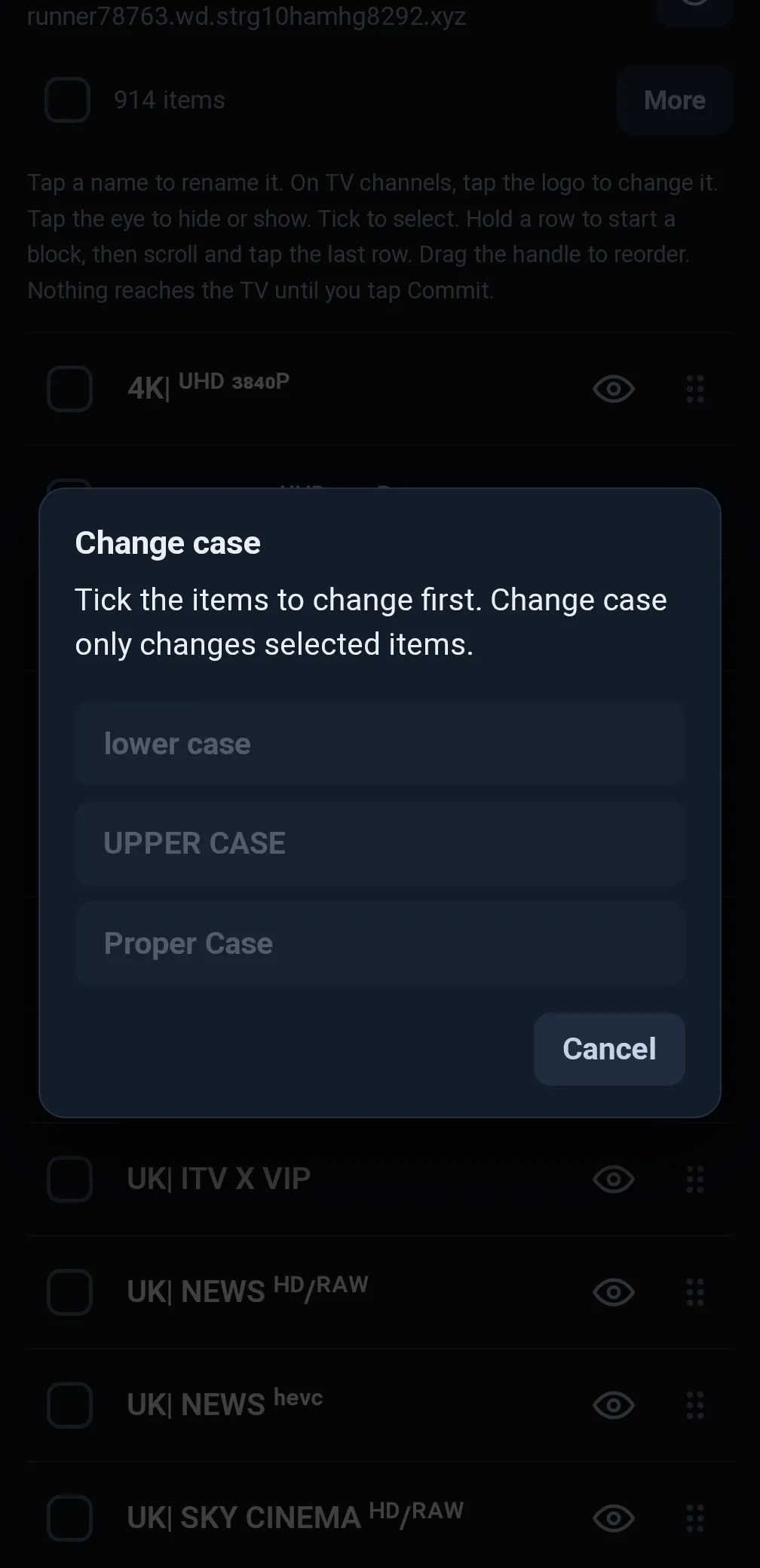
8Change case
Tick the items, open More and tap Change case. Then pick one:
- lower case: every letter small
- UPPER CASE: every letter capital
- Proper Case: a capital at the start of each word
Proper Case keeps well-known short names in capitals, such as TV, HD, UK, BBC, ITV and HBO.
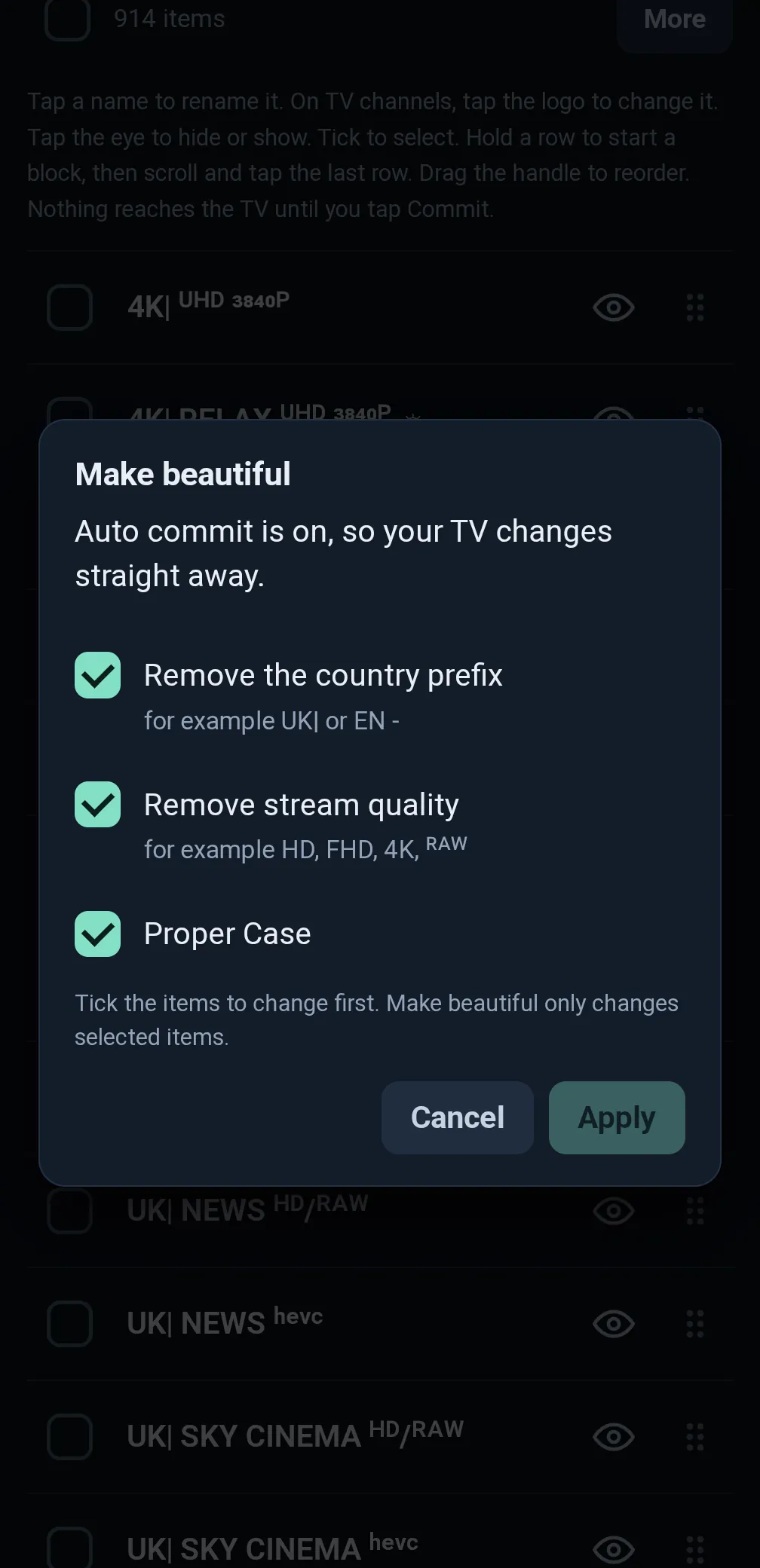
9Make beautiful
One tap to tidy messy names. Tick the items, open More and tap Make beautiful. Untick anything you do not want, then tap Apply.
- Remove the country prefix, such as "UK|" or "EN -"
- Remove stream quality, such as HD, FHD, 4K or RAW
- Proper Case, as in step 8
For example, "UK| NEWS HD" becomes "News".
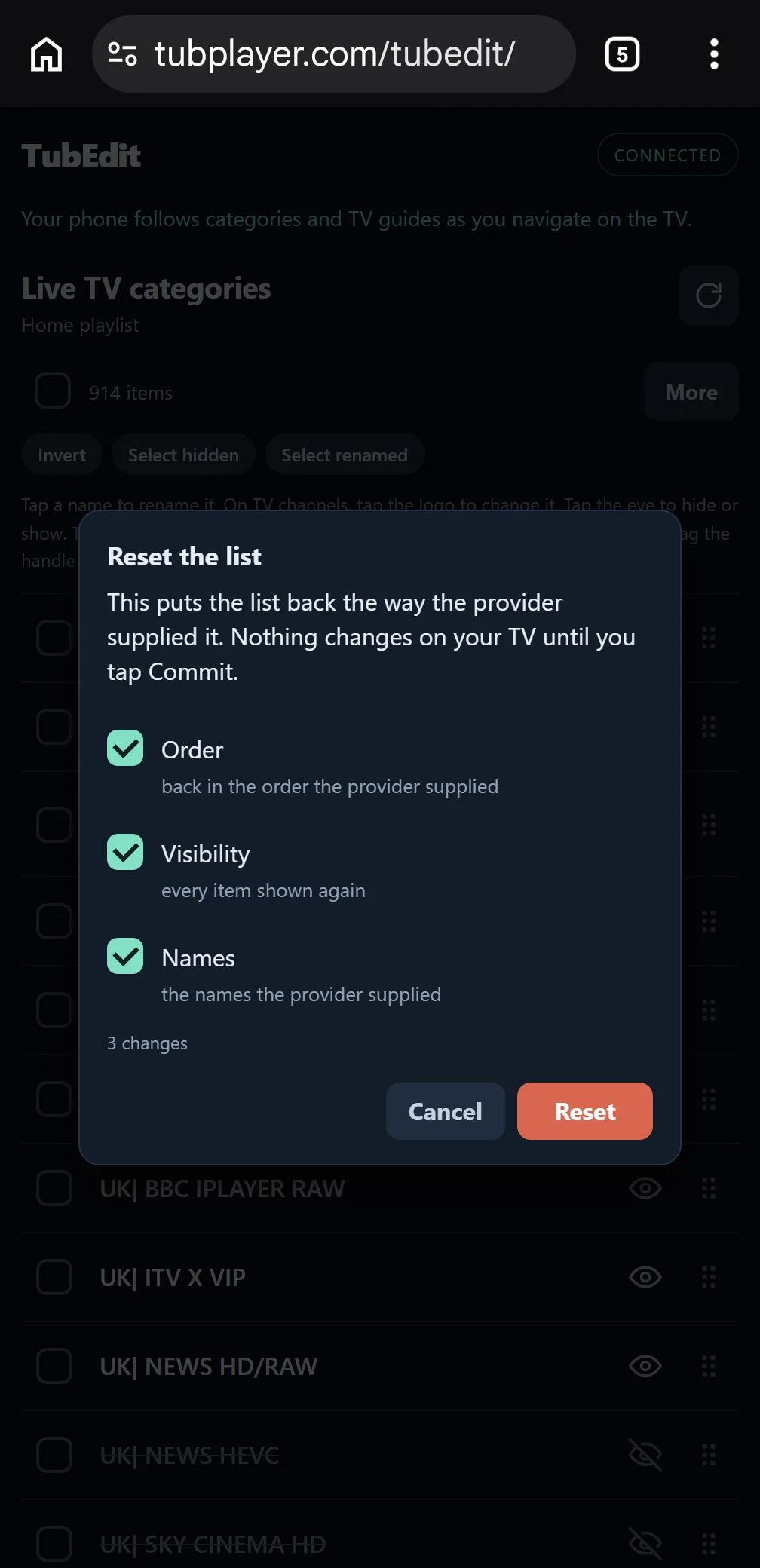
10Reset
Reset puts the list back the way the provider supplied it. Open More and tap Reset the list, then tick what to put back:
- Order: the order the provider supplied
- Visibility: every item shown again
- Names: the names the provider supplied
- Logos (TV channels only): the playlist or EPG logo on every channel
Nothing is ticked to start with. The sheet shows how many changes it will make; tap Reset to make them, or Cancel to keep your list as it is.
11Ending the connection
The connection ends when you:
- tap End connection on your phone
- leave TubPlayer on the TV
- stop editing and moving around for 20 minutes
If your phone locks, you switch to another app or you reload the page, TubEdit reconnects by itself when you come back, as long as that is within two minutes. Changes you had not committed are still there.
To connect again after the connection has ended, choose TubEdit on the TV for a new code.