1Open the editor
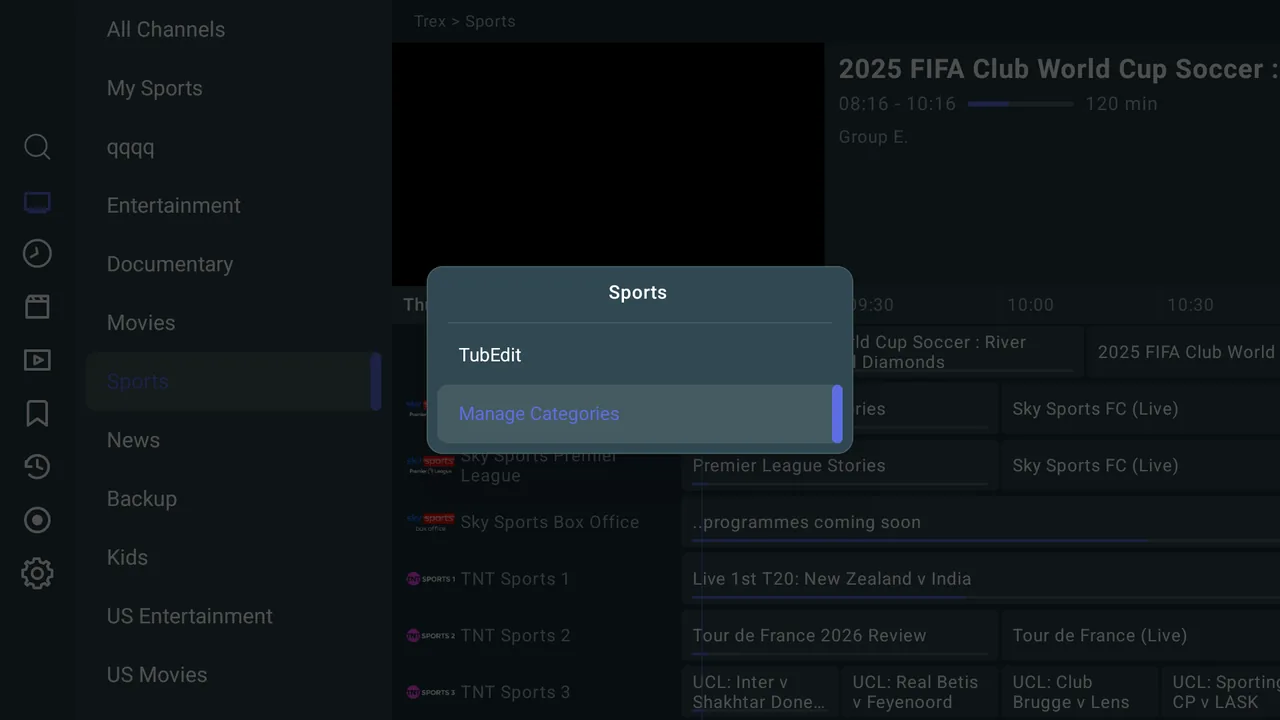
- Categories: hold OK on a category in the menu and choose Manage Categories.
- Channels: hold OK on a channel in the TV guide and choose Manage Channels. You edit the channels of the category you have open.
2Find your way around
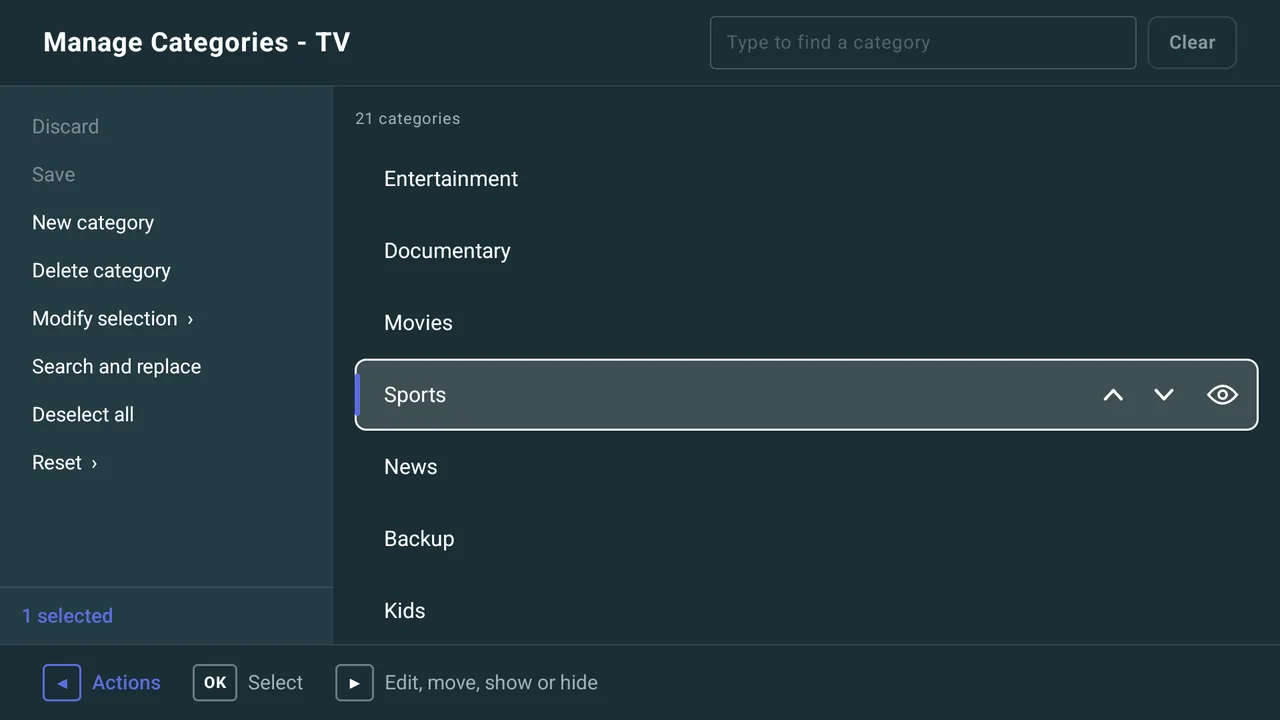
The editor fills the screen:
- The list in the middle: your categories, or the channels in one category.
- The actions down the left. Press Left from the list to reach them, and Right to go back.
- Find at the top. Press Left again from the actions, or Up from the top of the list, and type part of a name. Clear empties it.
- The bar at the bottom tells you what each key does where you are, and shows a message after each change.
3Select items
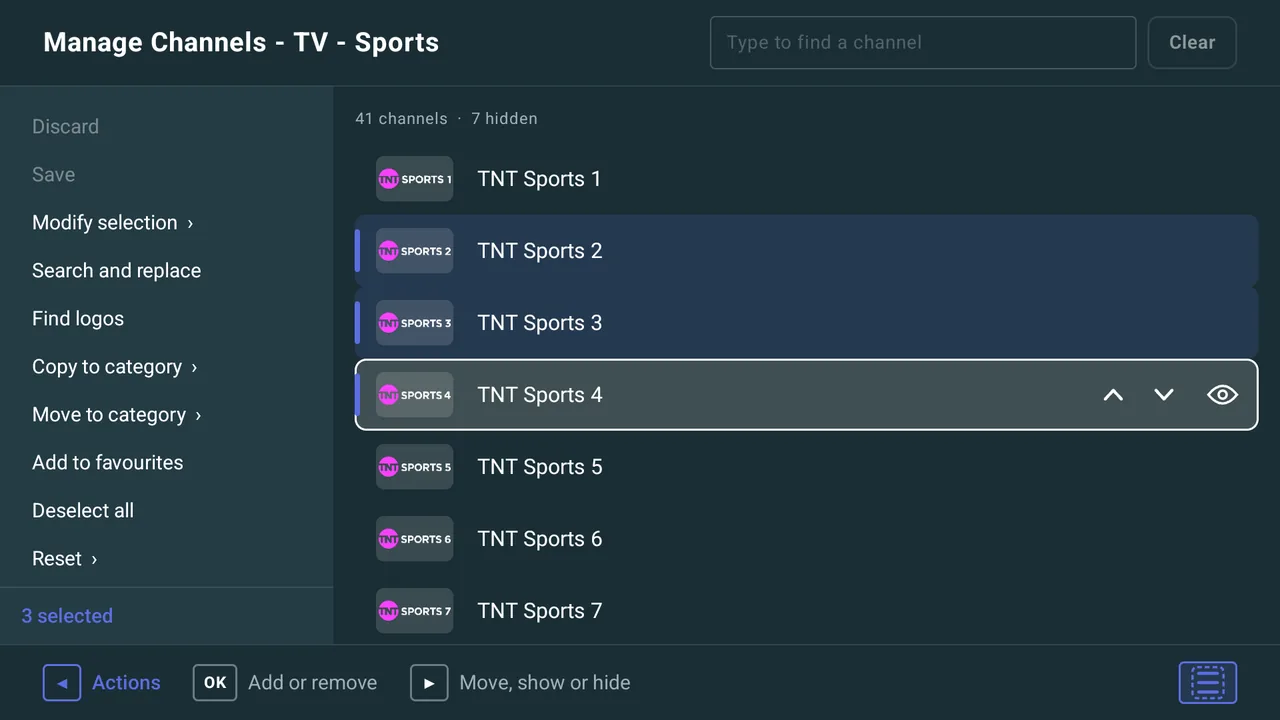
- One at a time: press OK on a row. Press OK again to deselect it.
- Several: hold OK and choose Select multiple items. Then press OK on each row you want, or press it again to leave it out.
- A block: hold OK and choose Select a block. Move to the last row and press OK. Everything between is selected.
- Everything: choose Select all on the left.
The number selected shows at the bottom of the actions. An icon in the bottom corner shows when you are selecting several or a block. Press Back to clear the selection.
4Rename, move, show or hide
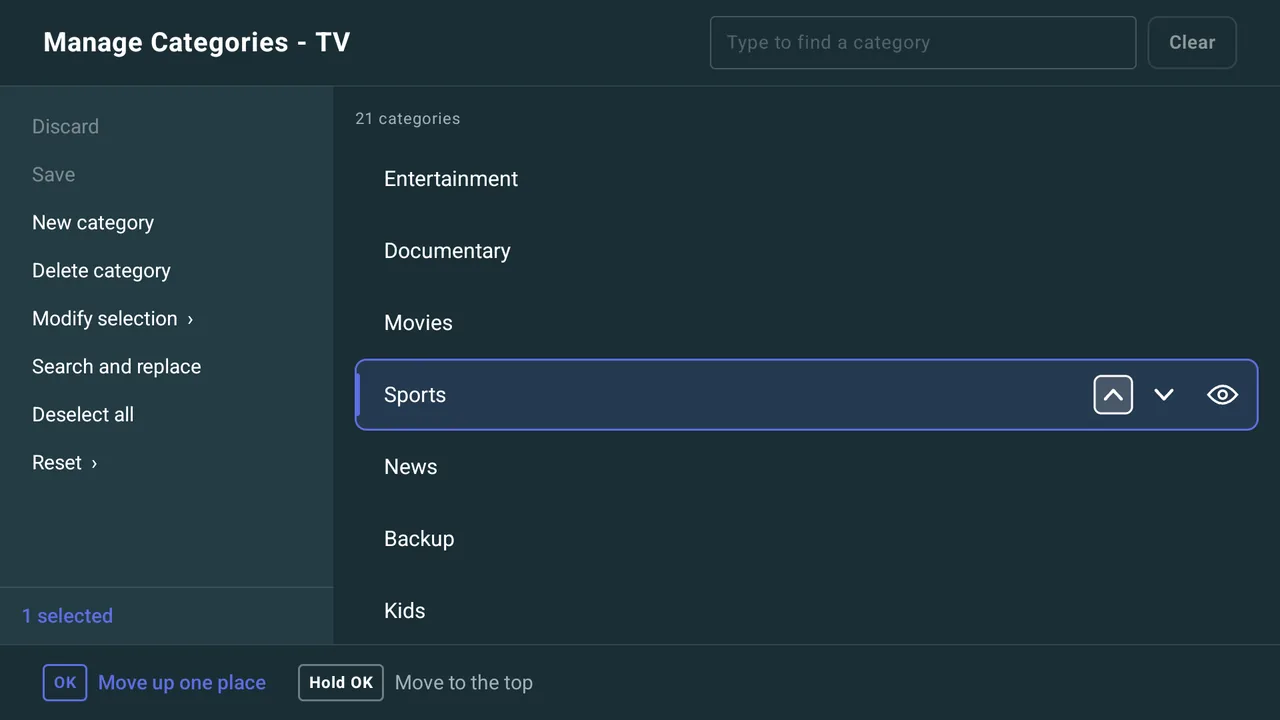
Press Right on a selected row to step along it:
- The logo (channels): OK changes it. See step 7.
- The name: OK lets you type a new one. Leave it blank to get the provider's name back.
- ↺ on a renamed row: puts the provider's name back.
- ▲ and ▼: OK moves one place. Hold OK to move to the top or the bottom.
- The eye: hides or shows. Hidden items stay in the list, struck through, so you can show them again.
With several rows selected, ▲, ▼ and the eye act on all of them.
5Save or discard
Nothing changes on your TV until you choose Save. A dot marks each row you have changed.
Changed your mind? Discard throws away everything since you last saved.
If you press Back with changes still to save, the TV asks whether to Save, Discard changes or Keep editing.
6Tidy up names
Select the items first. Then choose from the actions:
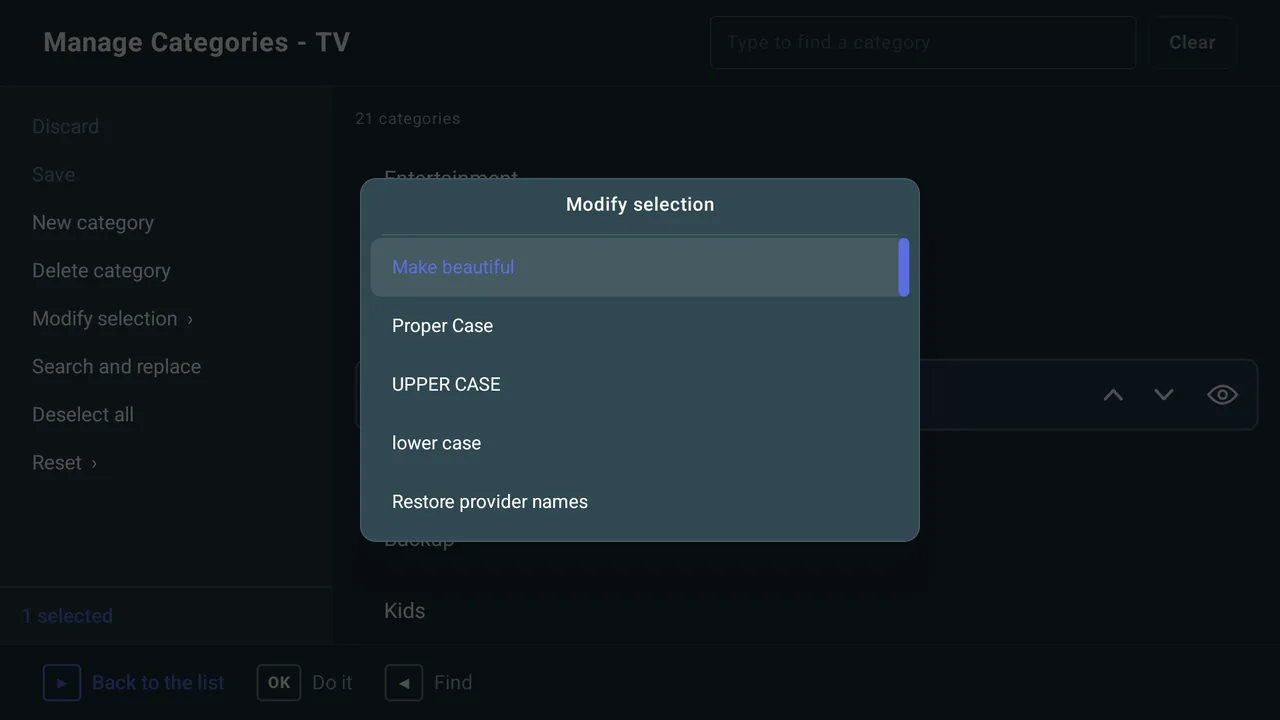
- Modify selection:
- Make beautiful: removes the country prefix (such as "UK|") and stream quality (such as HD or 4K), then uses Proper Case. Untick any you do not want.
- Proper Case, UPPER CASE or lower case
- Restore provider names
- Use playlist logos (channels): puts the playlist's own logos back.
- Search and replace: remove a word, replace it with another, or hide the items that contain it.
For example, "UK| NEWS HD" becomes "News".
7Channel logos
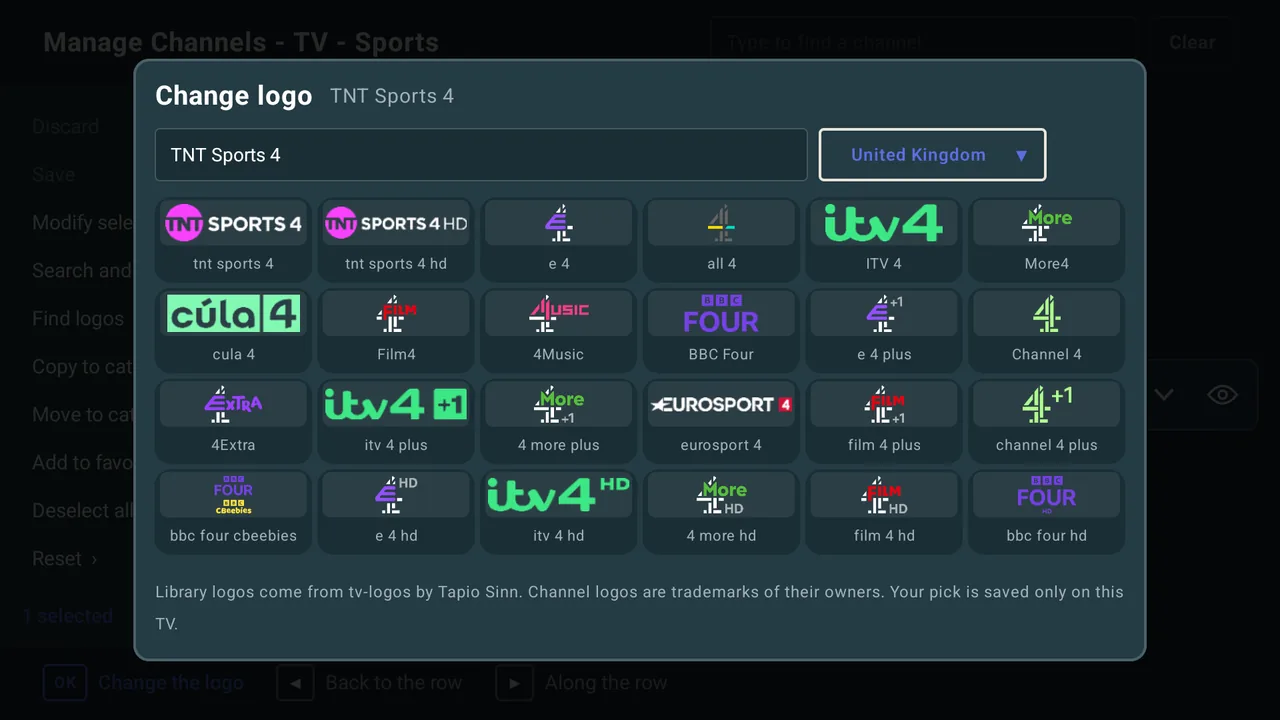
- One channel: move to its logo and press OK. Pick a logo from the library. You can change the search and the country.
- Many channels: select them and choose Find logos. Each channel gets the library's exact match, where there is one.
A channel showing a logo you picked has a new logo tag. To go back to the playlist's logo, use Use playlist logos under Modify selection.
8Your own categories
In Manage Categories for TV:
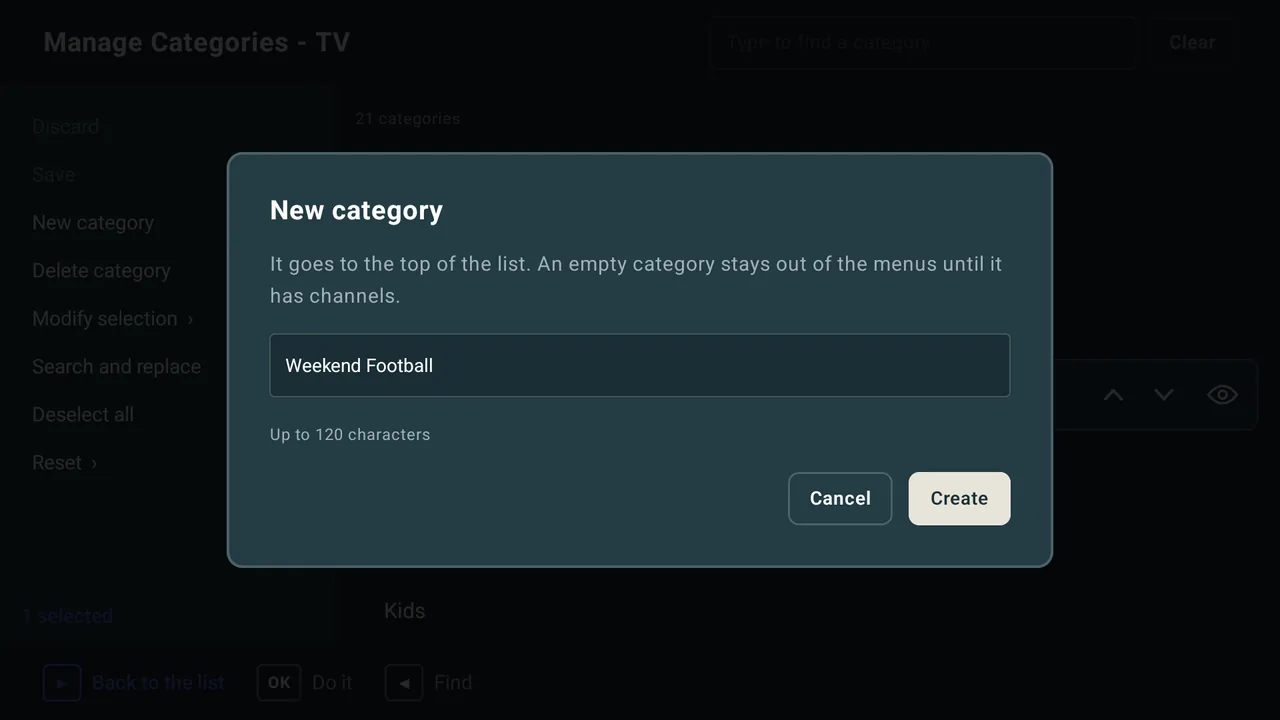
- New category: type a name and choose Create. It goes to the top of the list, with a custom category tag.
- An empty category stays out of the menus until it has channels. Copy or move channels into it from Manage Channels (step 9).
- Delete category: deletes the selected custom categories and the channels in them. Channels that were moved into one go back where they were. A provider's category can only be hidden.
9Copy or move channels
- In Manage Channels, select the channels.
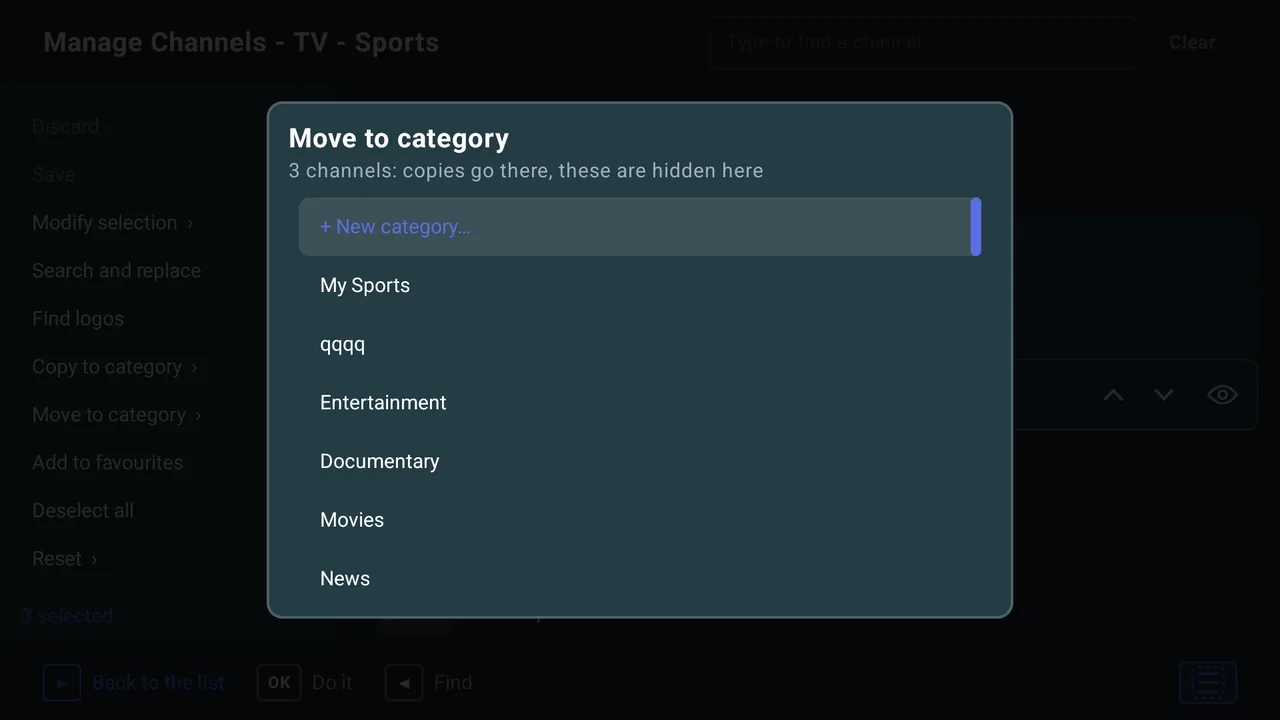
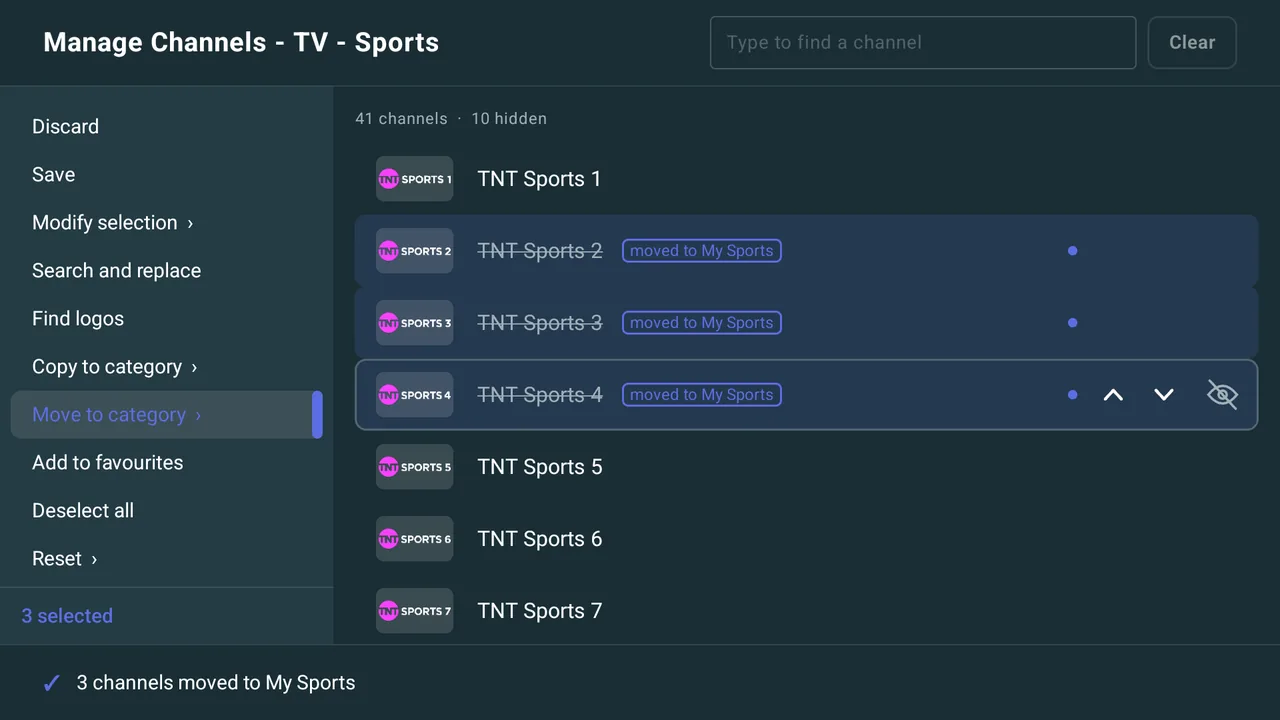
- Choose Copy to category or Move to category.
- Pick a category, or + New category… to make one.
- Copy puts a copy of each channel at the bottom of that category.
- Move does the same and hides the channel where it was.
A copy is a channel of its own. You can rename it, change its logo, hide it or move it, and the original does not change. It plays the same stream, with the same guide and Catch-Up. In the editor it has a copy tag and says where it came from.
10Favourites
- Add several at once: in Manage Channels, select the channels and choose Add to favourites. Favourite channels have a favourite tag. When everything selected is already a favourite, the action reads Remove from favourites.
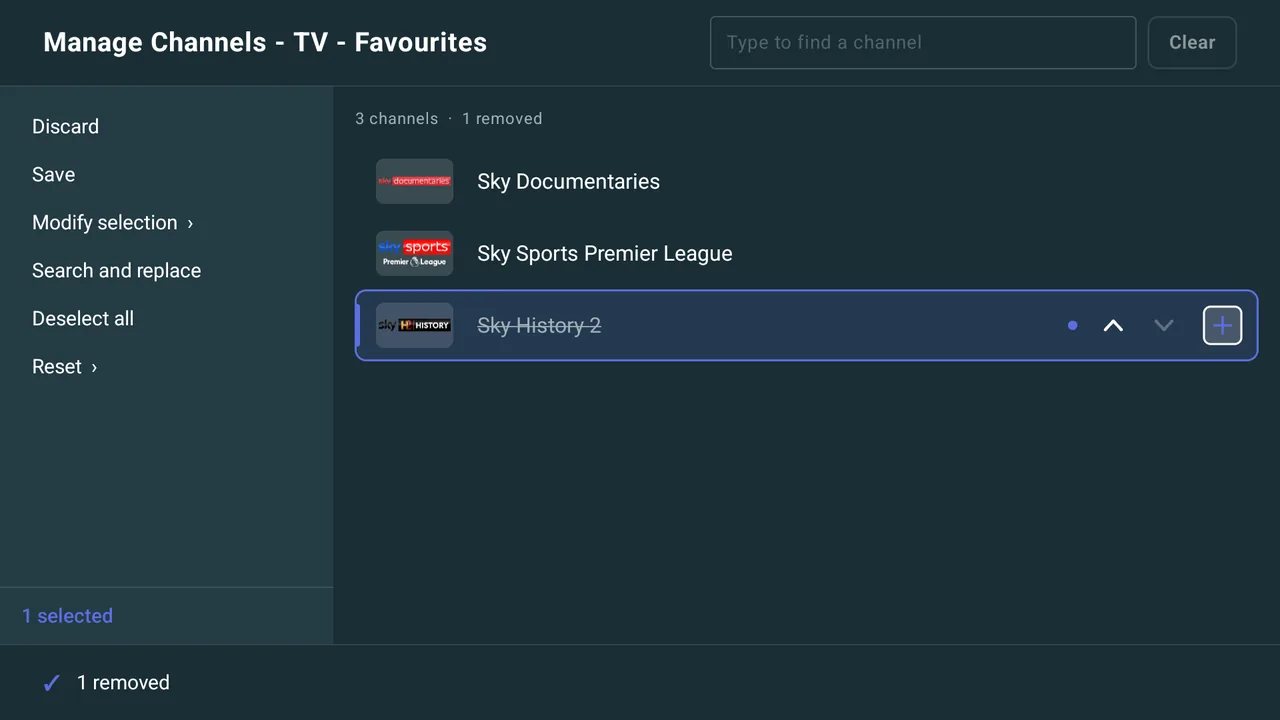
- Edit your favourites: hold OK on a channel in Favourites and choose Manage Channels. Order them with ▲ and ▼. The eye is replaced by ✕ to take a channel off the list, and + puts it back.
The virtual playlist works the same way.
11Reset
Reset puts the list back the way the provider supplied it. Choose Reset on the left, then:
- Order
- Visibility: shows every item again
- Names
- Logos (channels)
- Everything
Like every change, a reset waits for Save. Your own categories are never deleted by a reset.